Rules
Rules are a way for you to change how the Mate deals with the work.
You can see the current Rules that is used in the Rules tab on each process, or access them from the Overview.
You can change the rules once they have been created by the Developers.
Learnings from this page
- What is a rule?
- Different types of rules
- Understand how smart rules actually are
What is a rule?
Rules can be virtually everything. It is up to you and your Developers what should be a rule. Things that you would like to change once in a while should be rules.
Developers and Process Owners create the rules and implement them into the code.
You can make your Mates better
If you have a good idea to a rule in a process, you should tell your Developers about it. Some ideas can be easy to implement and it can give you a lot of flexibility in every day use.
Types of Rules
Here we walk through the different types of rules and what options you have with each.
Text and numbers
This can be a short piece of text or number. It can be a single character, a word, a sentence, a whole number or a number with digits.
Please note that it is easy to write something wrong in a text because 'hello there' is not the same thing as 'Hello there'
Example: Number for Minimum Amount Limit
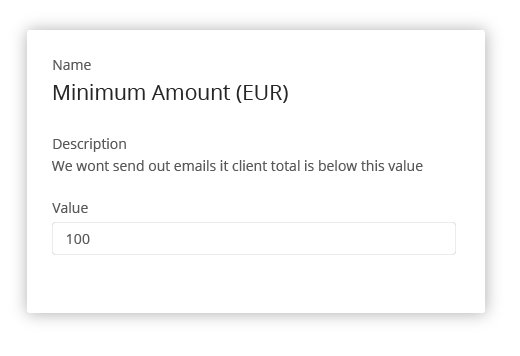
You can use a number to set a Minimum Amount Limit that decides if a Customer gets a reminder. Change it depending on your current policy.
Rich Text
A rich text is like a little word file, where you can make a simply layout of some text.
Use a rich text to compose a standard email text that the Mate uses in the different languages you need it in. You can then always change the wording when changes require it.
Please remember to Save when you have made changes.
Example: Rich text for an email template
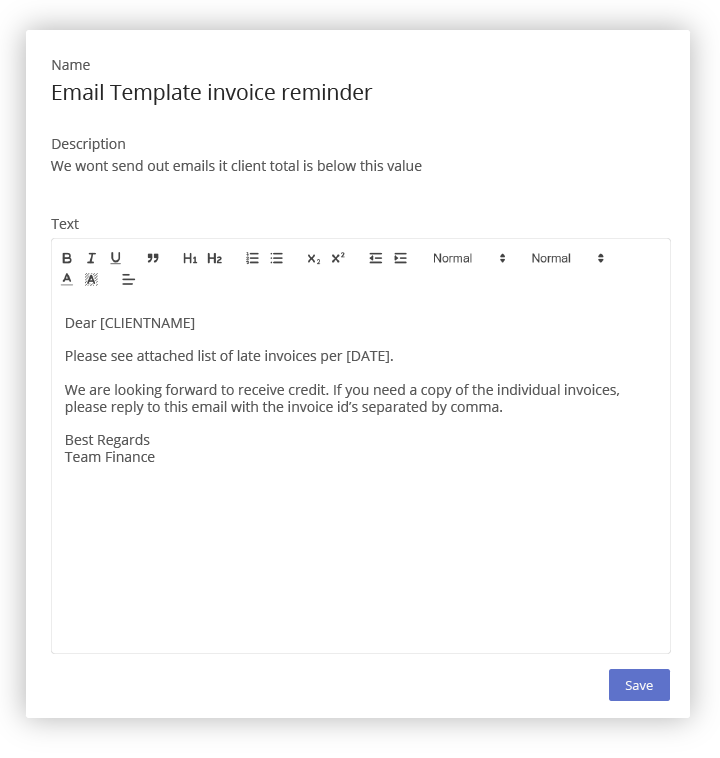
You can write an email template that the automation needs and put in words like [CLIENTNAME]. It is very easy for the Mate to find that word and put in the actual client name.
Checkbox
A checkbox is for toggling something On or Off. This can be used if you have different ways of handling tasks depending on things that the Mate does not know about.
Example: Checkbox for added functionality during holidays
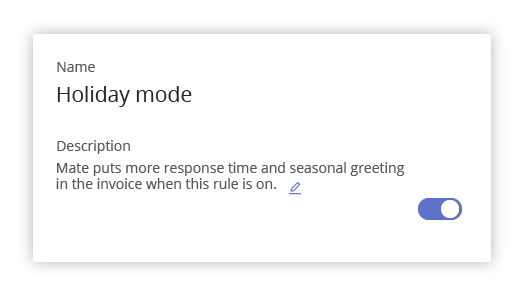
If you do something special in relation to holidays but it is not easy to know when to start it, you can have a checkbox and toggle it yourself.
Date
With a date rule you can select a date.
Example: Date for next campaign
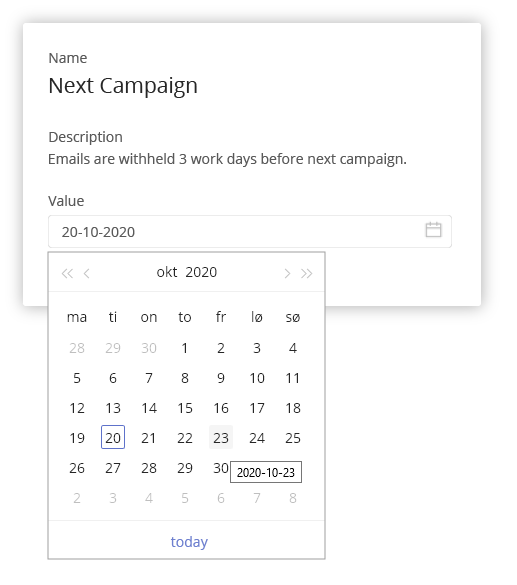
If you have a Mate that needs to know when your next sales campaign starts you can set it as a date rule.
Lists and Tables
A list is often used as a Exclude this list where you can exclude some tasks/clients from something - usually because you have an agreement with them that the Mate doesn't know about.
You can fill in whatever you like in a list.
You can add a note to each entry so you remember why things are on the list. The note can be seen by all your colleagues, but the Mates can't see them.
You can sort the order of the list simply by drag and drop
Please remember to hit Save if you make changes to the list in order for them to be logged.
Example: List with Excluded clients
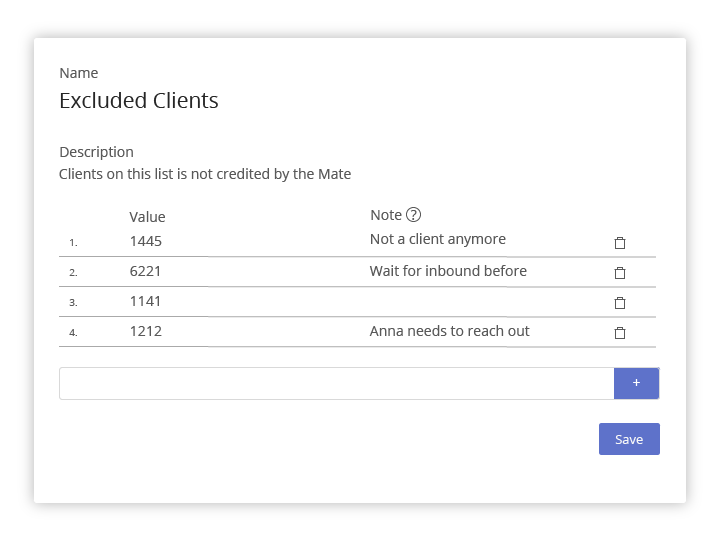
A list could look like this. You put Clients into the list and explain why in the Notes. The Mate can then check the list before doing anything.
Table
A table can for instance be used as a Rule Table that decides what happens to each specific task depending on some data on the task.
Please remember to hit Save if you make changes to the table in order for them to be logged.
Example: Table of who should get CC on emails
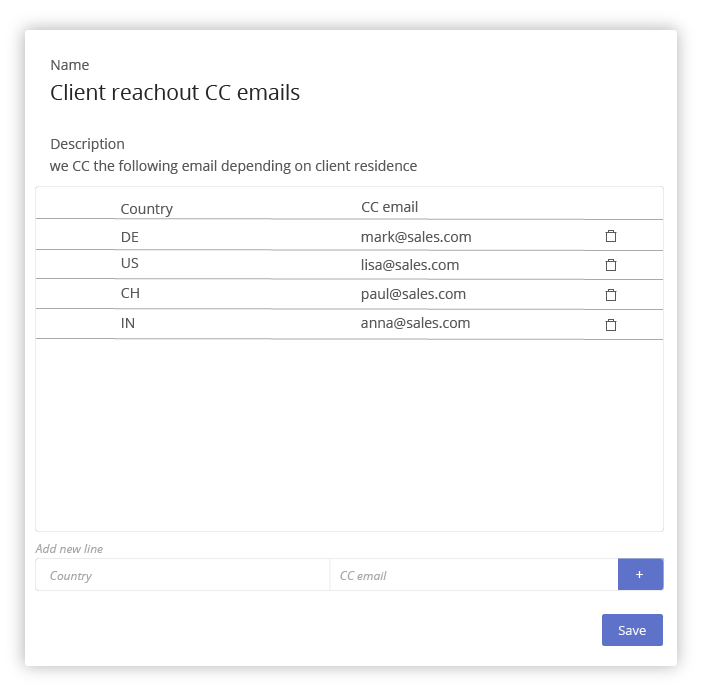
A rule table could look like this, where you can put in more countries, and change which sales representant should get notified based on these countries.