Error
The Error endpoint is used for sending a task to Manual with an Error status. It is different from using the Manual endpoint, that is also flags the task as having an Error.
Details
The Error flag is used for indication that something unexpected happened that the Mate was not able to handle, often referred to as an exception. Something unexpected could be an integer suddenly behaving as a string, or a variable being empty when it shouldn't. It can be that an application or API did not respond as expected, or an object was null when it should have been initialized.
Use together with 'Stop on Errors' on the Process
It is possible in the Process settings to enable 'Stop on Errors' and set a limit for how many Errors are allowed before the process is stopped. This way, if there is more errors than the limit allows, it will not be possible for the Mate to continue working - and thus having more errors - before someone has looked at them. Click here to learn more about how to configure Error Handling on the Process.
An Error is solved when an employee moves a Task to another queue. It is possible to move the Task to Manual, to solve the error but keep the task in the Manual queue.
Error takes a TaskAction objet as argument
    {
        "taskId" : 0,
        "reason" : "(optional) Reason for the move",
        "comment" : "(optional) Will create a comment together with the move",
        "overwriteSecondsSaved" : null,
        "overwriteEntries" : null
    }
- TaskId: Required - Indicates which Task should be moved
- Reason: Optional - While not mandatory, it is strongly recommend to give the Task a reason to inform the users why or in what context it was moved.
- Comment: optional - Will let the Mate leave a Comment.
- overwriteSecondsSaved: optional - Overwrites the Seconds Saved settings when logging KPI's for this task
- overwriteEntries: optional - Overwrites the Entries settings when logging KPI's for this task
Use Comment to elaborate
We recommend using Comment together with the move, to elaborate on the reason and provide more information to the user as to what has happened and why the Mate did what it did. In case someone comes asking in the future, it is nice to have some data on what the Mate saw and did.
overwriteSecondsSaved and overwriteEntries is used to overwrite KPI's on the Task. It is the most common scenario that these are not included (undefined) or left as null. It typically only for advanced Mates where KPI's are followed more closely that these become relevant. If overwriteEntries is filled out, and overwriteSecondsSaved is left as null then Anymate will update the KPI's using the default settings for seconds saved pr. entry. If overwriteSecondsSaved is filled out, then that will be the value logged in the KPI's regardless of what overwriteEntries are (however amount of entries is always logged so it can still be relevant later when doing data analysis on the Mates performance). Click here to learn more about KPI's.
Example
The endpoint is found at https://{ClientId}.anymate.app/api/Error/ The http-request must be submitted as a POST with JSON encoded data.
curl --request POST \
        --url https://{ClientId}.anymate.app/api/Error/ \
        --header 'Authorization: Bearer eyJhbGciOiJSUzI1NiIsImtpZCI6IjgyQ0JGNDY3NEMyMUExRjBCMjhFNzlBNTk5MzAwQjdBIiwid.....' \
        --header 'Content-Type: application/json' \
        --data '{
        "taskId" : 1,
        "reason" : "(optional) Reason for the move",
        "comment" : "(optional) Will create a comment together with the move"
                }'
Using the Anymate .NET SDK, you simply call the Error function in IAnymateService to register the Error on the Task.
using Anymate;

//Initialize AnymateService
var anymateService = new AnymateService(client_id, client_secret, username, password);

//Call the Error endpoint. In this example, we give the taskId, reason and comment directly as input.
var actionResponse = anymateService.Error(taskId: taskId, reason: "A Reason", comment: "A comment to elaborate on the action");
Using the Anymate Python SDK, simply invoke the error function in anymate.client.
import anymate

# code omitted

# Initialize the client
client = anymate.client(client_id, api_secret, username, password)

# Invoke take_next, and get the task as a dict
task = client.take_next("myProcessKey")

# Read the TaskId of the new task
taskId = task['taskId']

# Business Logic omitted

# Move the Task
action_result = client.error({'taskId': taskId,
                              'reason': 'A Reason',
                              'comment': "Comment describing what happened"})
error takes a dictionary or object as input.
Using the Anymate UiPath SDK, simply invoke the Error Task activity.
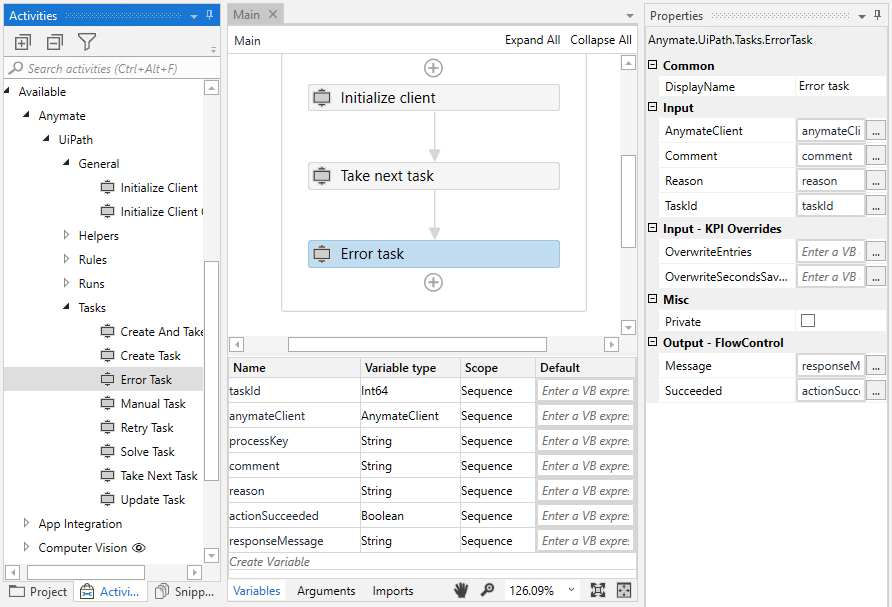
AnymateClient and TaskId (as int64) are required input. Comment and Reason are optional, however we strongly recommend using them to take full advantage of Anymate.