Create Task
Create Task enables Mates to create tasks, either in the same process where they are currently working or other processes.
Details
Create Task takes the following parameters:
- ProcessKey: Required - This indicates in which Process the Mate will create a Task. In other words, this is the target Process.
- Comment: Optional - The Mate can leave a comment at the same time the Task is created.
- ActivationDate: Optional - It is possible to set the activation date when the Task is created. If this field is left empty/not set/null, the default ActivationDate will be used according to the Process settings.
Besides these parameters, the Mate will need to supply data for the fields and keys defined in the Task Data section under Process. Keys are always Required, and without them it will not be possible to create the task.
Example
The endpoint is found at https://{ClientId}.anymate.app/api/CreateTask/{ProcessKey} The http-request must be submitted as a POST with JSON encoded data.
curl --request POST \
        --url https://{ClientId}.anymate.app/api/CreateTask/{ProcessKey} \
        --header 'Authorization: Bearer eyJhbGciOiJSUzI1NiIsImtpZCI6IjgyQ0JGNDY3NEMyMUExRjBCMjhFNzlBNTk5MzAwQjdBIiwid.....' \
        --header 'Content-Type: application/json' \
        --data '{
                "comment": "Type in a new comment here",
                "activationDate" : "2021-01-01",
                "textfield": "value",
                "numberfield": 1
                }'
Using the Anymate .NET SDK, the CreateTask method in IAnymateService will let you create a Task. It takes either any type of object you create yourself or a json string.
using Anymate;

//code omitted

//Create AnymateService object
var anymateService = new AnymateService(client_id, client_secret, username, password);

// Here we use an anonymous type to make the new Task object.
// Make sure that the attributes have the correct names.
var newTask = new
{
    comment = "Type in a new comment here",
    activationDate = new DateTime(2021, 01, 01),
    coreSystemKey = "key value as string",
    dropdownField = "Dropdown example",
    textField = "Text example",
    numberField = 999.99
};

// Create the task with the newTask object we just created and the ProcessKey to ensure it is created on the correct process.
var createTaskResult = anymateService.CreateTask(newTask, processKey);

// code omitted
Using the Anymate Python SDK, simply invoke the create_task function in anymate.client.
import anymate

# code omitted

# Initialize the client
client = anymate.client(client_id, api_secret, username, password)

# Set activationDate for tomorrow
activationDate = datetime.datetime.now() + datetime.timedelta(days=1)

# We create the new task as a dict
newTask = {
    'comment': "Type in a new comment here",
    'activationDate': activationDate.strftime('%Y-%m-%d'),
    'coreSystemKey': "key value as string",
    'dropdownField': "Dropdown example",
    'textField': "Text example",
    'numberField': 999.99
}

# Create the task in anymate
create_task_response = client.create_task("targetProcessKey", newTask)
create_task takes a dictionary or object as input.
Using the Anymate UiPath SDK, simply invoke the Create Task activity.
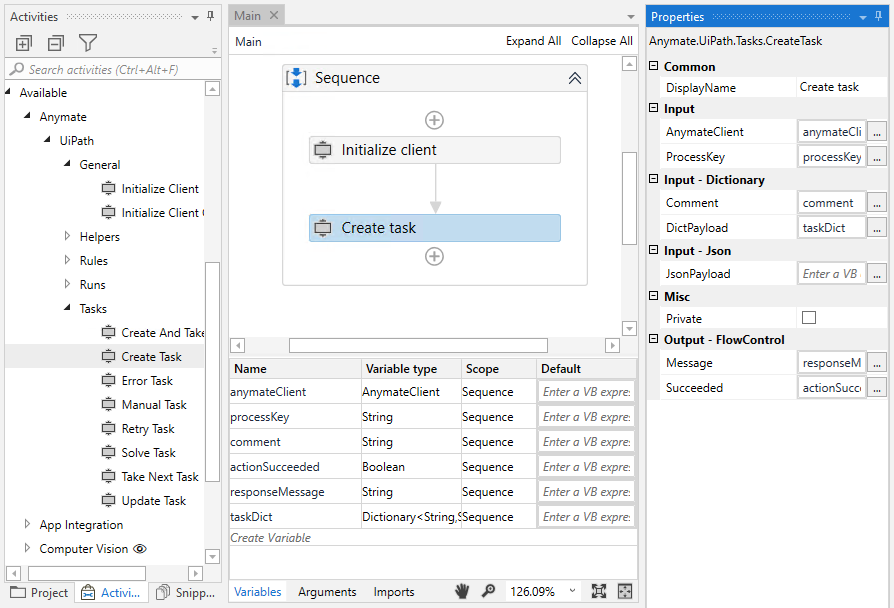
Create Task takes either a Dictionary Payload (with string key and string value) and optionally a Comment or a JSON formatted string as input, if e.g. the Developer prefers to serialize a object directly. Don't worry - Anymate ensures that anything formatted as a string, will be formatted to the correct type before you get the Task back with Take Next.